There are two versions of the Kamvas 13 Gen 3, one with the stand and one without. The stand can be adjusted at 6 angles from 20 to 50 degrees. I reviewed the version with the stand, and I highly recommend buying it. It is also available in green and pink, as well as the original black one in this video review. It also comes with the ‘three-button’ pen, glove, and the pen holder has 10 spare nips inside its body. It is supplied with HDMI & USB cables for different scenarios. For instance, if your computer does not have enough power from its USB, you can connect a second one to a USB power supply. We did not need to do that, as our mini PC had enough power from its USB.
To be able to set up the dials, buttons, and pen, you will need to download the driver software here
My daughter (10) already knew how to use Krita, and she already had it on this mini PC. She also has it on her Android cellphone. Krita is free open source software, and you can download it here
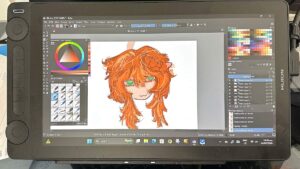
In the two months she has had the tablet, she has created many, many drawings like the one in the photo
This tablet is not a standalone model, and thus it costs substantially less. You can use it with a laptop, desktop, or mini PC, running Windows, macOS, or Linux. All the buttons and dials on the unit and pen are customizable. You can also use it to browse, check your emails, or use any app on your computer